Apple ID Scam: How It Works and How to Spot a Fake 'Your Apple ID Has Been Locked' Message
Apple ID phishing texts and emails claiming your account is locked or a purchase needs verifying are one of the most common phone scams in the US. Here's exactly how the scam works and how to check if a message is real.
Published July 25, 2026
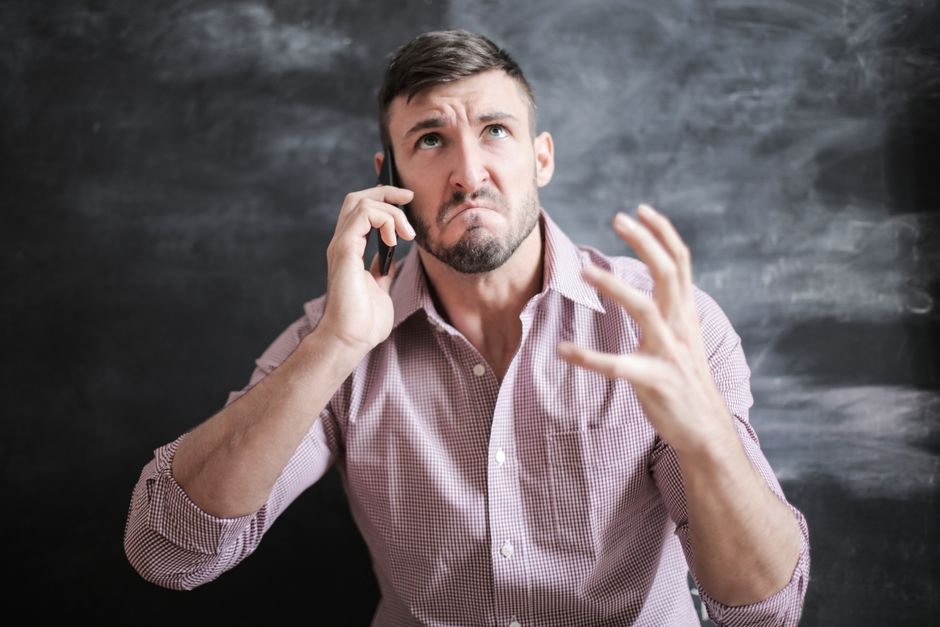
An “Apple ID” scam almost always starts the same way: a text message or email claims your Apple ID has been locked, that someone tried to sign in from an unfamiliar device, or that a purchase you didn’t make is about to go through — and it needs you to “verify your account” right now by tapping a link. The message is fake, the link leads to a page designed to look exactly like Apple’s real sign-in screen, and anything you type there — your Apple ID email, password, or a two-factor code — goes straight to the scammer.
How the scam actually works
The message typically arrives by text (called “smishing”) or email, and it’s built around urgency: your account will be “permanently disabled,” a “$799 purchase” is “processing,” or your storage is “full and photos will be deleted.” Each version is designed to produce the same reaction — panic first, think later — because that’s exactly the state in which people are least likely to check a URL carefully before typing in credentials.
Tapping the link opens a page that’s a pixel-for-pixel copy of Apple’s real iCloud or Apple ID sign-in screen, hosted on a domain that isn’t apple.com — something like “apple-id-verify-secure.com” or a long, unrelated domain with “apple” buried in a subdomain. Entering your Apple ID and password on this page sends both directly to the scammer. Many versions go further and ask for the two-factor authentication code sent to your real device next, specifically because a stolen password alone isn’t enough to get into a 2FA-protected account — the scammer needs that code too, and asks for it immediately while it’s still valid.
Once a scammer has full access to an Apple ID, the damage can be extensive: they can lock the real owner out entirely, access iCloud photos and backups, use Find My iPhone to lock or track devices, and in some cases use stored payment methods for fraudulent purchases through the App Store.
Warning signs
- A link in an unsolicited text or email, rather than a notification that appears directly on your device through Apple’s own system.
- Urgent, time-limited language — “24 hours,” “immediately,” “your account will be disabled” — designed to prevent you from pausing to check.
- A domain that isn’t apple.com in the address bar once the link opens — check this before typing anything, not after.
- A request for a 2FA code by text reply, phone call, or on a web page — Apple’s real 2FA prompts appear directly on your trusted devices, never require you to read a code aloud or type it into an unrelated site.
- Generic greetings (“Dear Customer”) instead of your actual name, though more sophisticated versions have started including real names obtained from data breaches.
Recent variations
Beyond the classic “account locked” text, current variations include fake “your subscription payment failed” emails referencing a specific (fabricated) app or service, fake “someone signed in from [City], [State]” alerts naming a real nearby city to feel more credible, and phone calls from someone claiming to be “Apple Support” who already has some of your real information (often purchased from a prior breach) to sound convincing before asking you to read back a 2FA code “to verify your identity.”
How to check if a message is real
Apple’s own guidance is direct: Apple will never ask you to disclose your Apple ID password, device passcode, or a two-factor authentication code over the phone, by text, or by email. If you’re unsure whether a notification is real, don’t tap anything in the message — instead, open the Settings app directly on your device (or go to appleid.apple.com by typing it yourself) and check your account status there. If there’s a genuine issue, it will show up in your own account settings, reached independently of the message you received.
What to do if you already entered your Apple ID password
Change your Apple ID password immediately at appleid.apple.com (typed directly, not through any link from the suspicious message), and check that your trusted phone number and recovery details haven’t been changed. If you also entered a 2FA code, treat the account as compromised until you’ve confirmed no unfamiliar devices are signed in, checked under Settings > [your name] on an Apple device. If you use that same password anywhere else, change it there too.
Protection tips
- Never tap a link in an unsolicited text or email claiming to be from Apple — go to appleid.apple.com or open Settings directly instead.
- Turn on two-factor authentication if you haven’t already (Apple requires it for most accounts now), and never share a 2FA code with anyone, including someone claiming to be Apple Support.
- Report phishing texts to Apple by forwarding them to reportphishing@apple.com, and report phishing emails the same way.
- If a call claims to be Apple Support, hang up and call Apple back directly using the number listed on apple.com/contact — never a number given to you in the call.
For a quick first check on any Apple-ID-related message before you act, the Scam Risk Score Calculator walks through the same red flags scored here, and the Website Trust Score Calculator can check a suspicious link’s domain structure before you click it.
FAQs
Does Apple ever call, text or email asking for my password? No. Apple states plainly it will never ask for your password, device passcode, or a 2FA code through any of these channels.
How do I tell a real Apple notification from a fake one? Real account issues appear directly in Settings on your device or at appleid.apple.com when you navigate there yourself — not by tapping a link in a message you received.
What’s the fastest way to report an Apple phishing text? Forward it to reportphishing@apple.com, then delete it.
I already tapped the link and typed my password — what now? Change your Apple ID password immediately at appleid.apple.com (typed directly), verify your trusted devices and recovery info, and change that password anywhere else you reused it.
Related calculators
Scam Risk Score Calculator
Answer 10 quick yes/no questions about a message, call or offer to get a 0-100 scam-risk score, a risk level, and a clear recommendation — entirely in your browser.
Website Trust Score Calculator
Paste a URL to check it against structural phishing red flags — HTTPS, IP-literal hosts, suspicious TLDs, typosquatted brand names, and phishing-style wording — instantly and entirely in your browser.
Identity Theft Risk Calculator
Score your current identity theft exposure against 5 common risk factors — password reuse, data breaches, phishing clicks, SSN sharing and credit monitoring.